Holiday Hours
Please note that our branches will be closed on Monday, February 16th for Family Day.
Our contact centre will be open 9:30 am to 4:00 pm ET on February 16th. Online banking and ATMs are available for your convenience.
Ways to Bank
Mobile Wallet

Digital banking with Alterna Savings just got even easier with the integration of mobile wallet technology. Got an Alterna debit card and an iPhone or Android device? You're ready to go! Load your debit card to your mobile wallet and leave your "physical" wallet at home.
Available to all Alterna members and small businesses, this contactless payment method is easy to set up and even more secure than entering your physical card and PIN into a terminal. One tap and you're done—it'll be your new go-to!

Apple Pay – A Simple and Secure Way to Pay
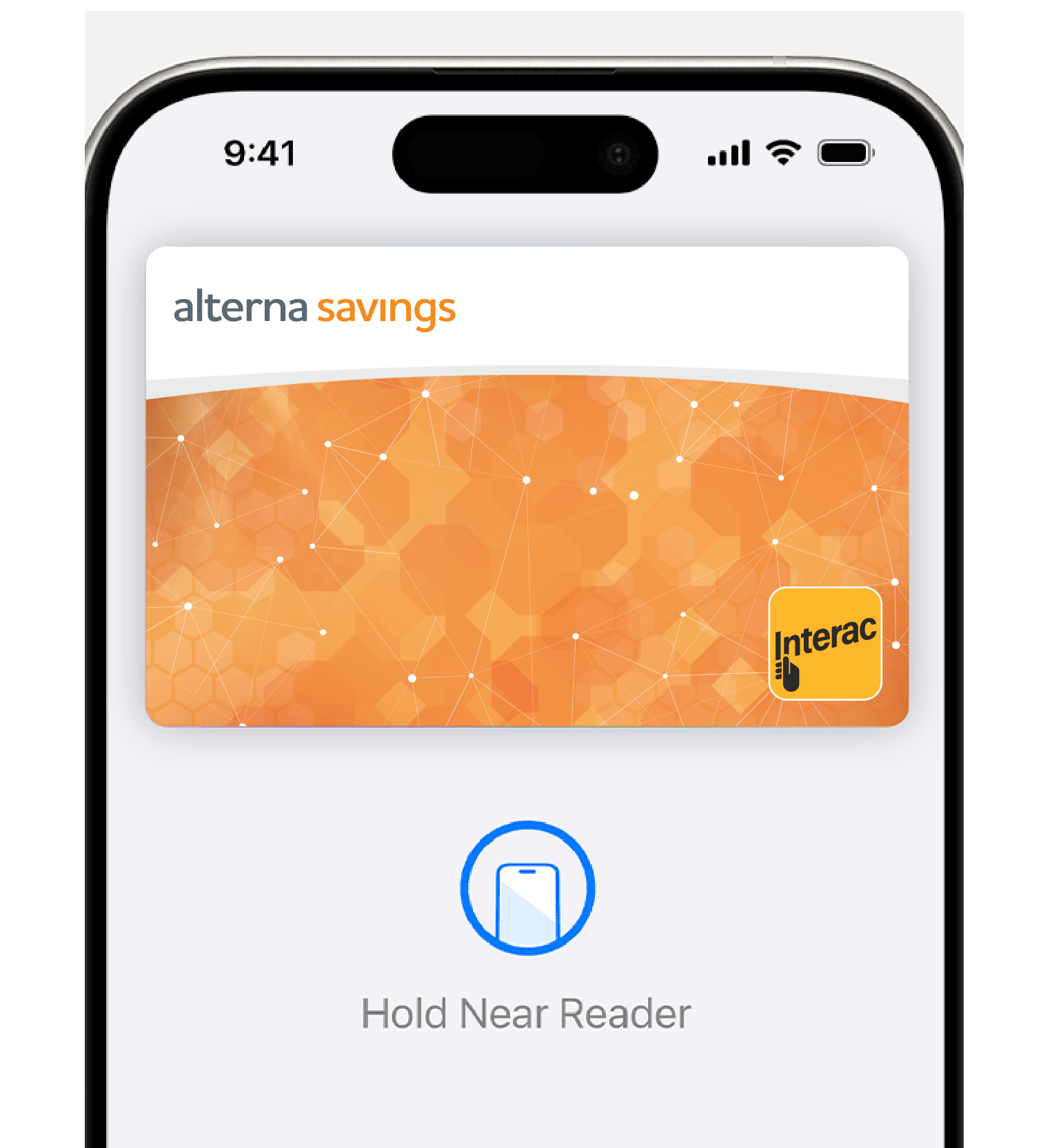
We're pleased to offer you an easy and secure way to make everyday purchases! Paying in stores with Apple Pay is easy, safe and private. Your card details are not shared during a transaction, keeping your transactions secure.
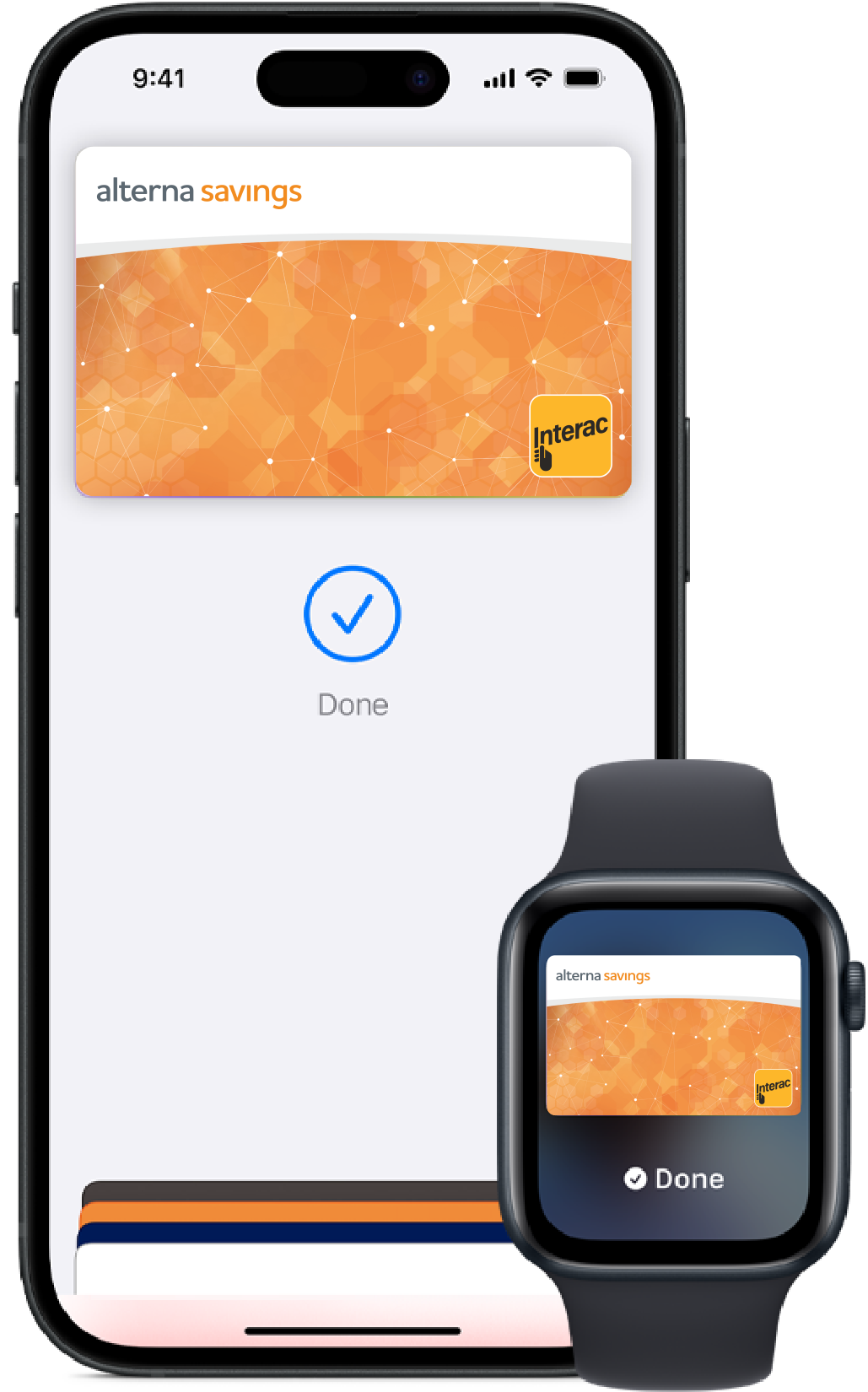
On your iPhone
- Open the Wallet app.
- Tap the (+) sign in the upper right corner.
- Follow the on-screen instructions to add your Debit Card.
*Note: In the event that scanning your card is unsuccessful or you receive an error message, please proceed by entering your card details manually to ensure your card is added to your mobile wallet.
On your Apple Watch
- Open the Apple Watch app on your iPhone.
- Go to the My Watch tab. If you have multiple watches, choose one.
- Tap Wallet & Apple Pay and select Add Debit Card.
- Follow the onscreen instructions to add your Debit Card.
On an iPhone 8 or earlier with Touch ID:
- Rest your finger or thumb on the home button and hold the top of your iPhone within a few centimetres of the contactless reader.
- You will see Done and a checkmark on the display letting you know your payment was approved. If vibration and sounds are enabled, you will feel a subtle vibration and hear a beep.
On an iPhone X or later:
- Double-click the side button.
- Glance at iPhone to authenticate with Face ID or enter your passcode.
- Hold the top of iPhone within a few centimeters of the contactless reader until you see Done and a checkmark on the display.
On an Apple Watch:
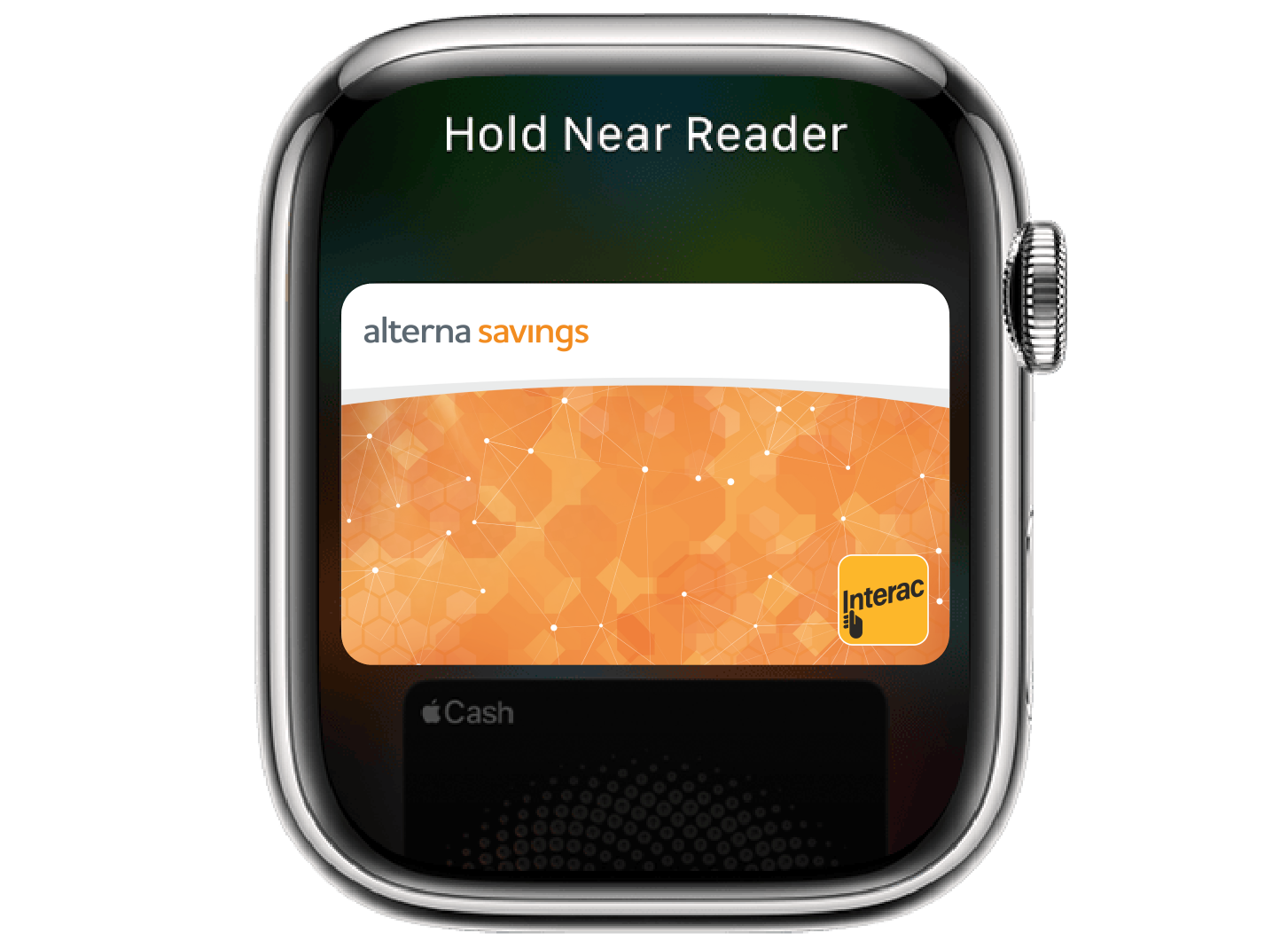
- Double-click the side button and hold the display of your Apple Watch within a few centimetres of the contactless reader.
- Wait until you feel a gentle tap.
- You will see Done and a checkmark on the display letting you know your payment was approved.
Using your Alterna Debit Card on Apple Pay works wherever Interac® Flash is accepted. Just look for the Interac logo or contactless symbol at the checkout. Some stores will also display the Apple Pay logo.


Google PayTM – the fast, simple way to pay!
Google Pay is the fast, simple way to pay in millions of places — in stores, restaurants, transit and more. It brings together everything you need at checkout and protects your payment info with multiple layers of security. Plus, you can manage your account wherever you want - on the web or in the app. When you pay in shops, Google Pay doesn’t share your actual card number, so your information stays secure. Plus, you can check out faster with the device that’s already in your hand – no need to dig for your wallet.
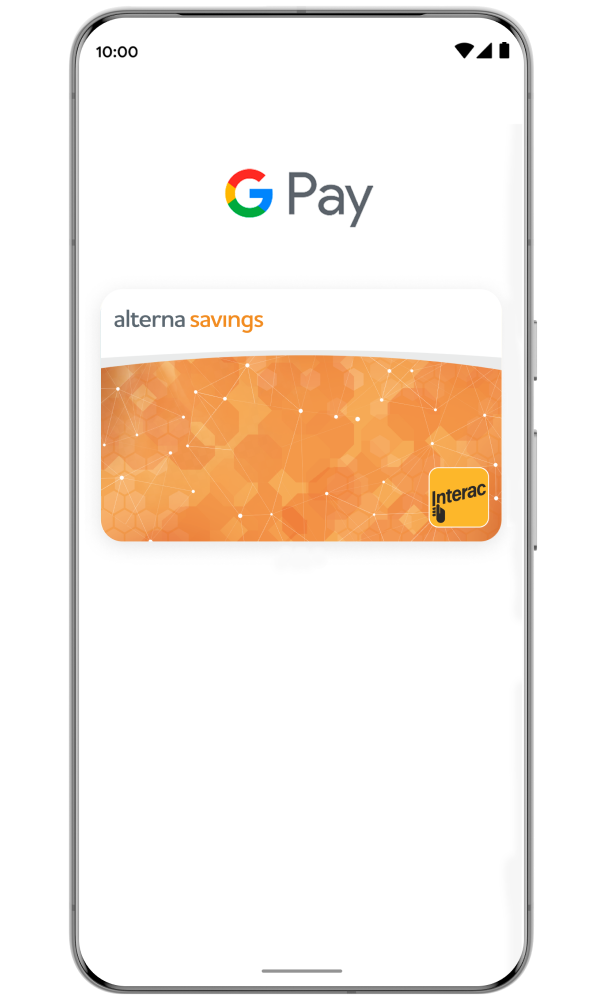
On your smartphone
- Download Google Wallet from Google Play.
- Open the Google Wallet app.
- Tap the (+) sign.
- Follow the on-screen instructions to add your Debit Card.
On your wearable
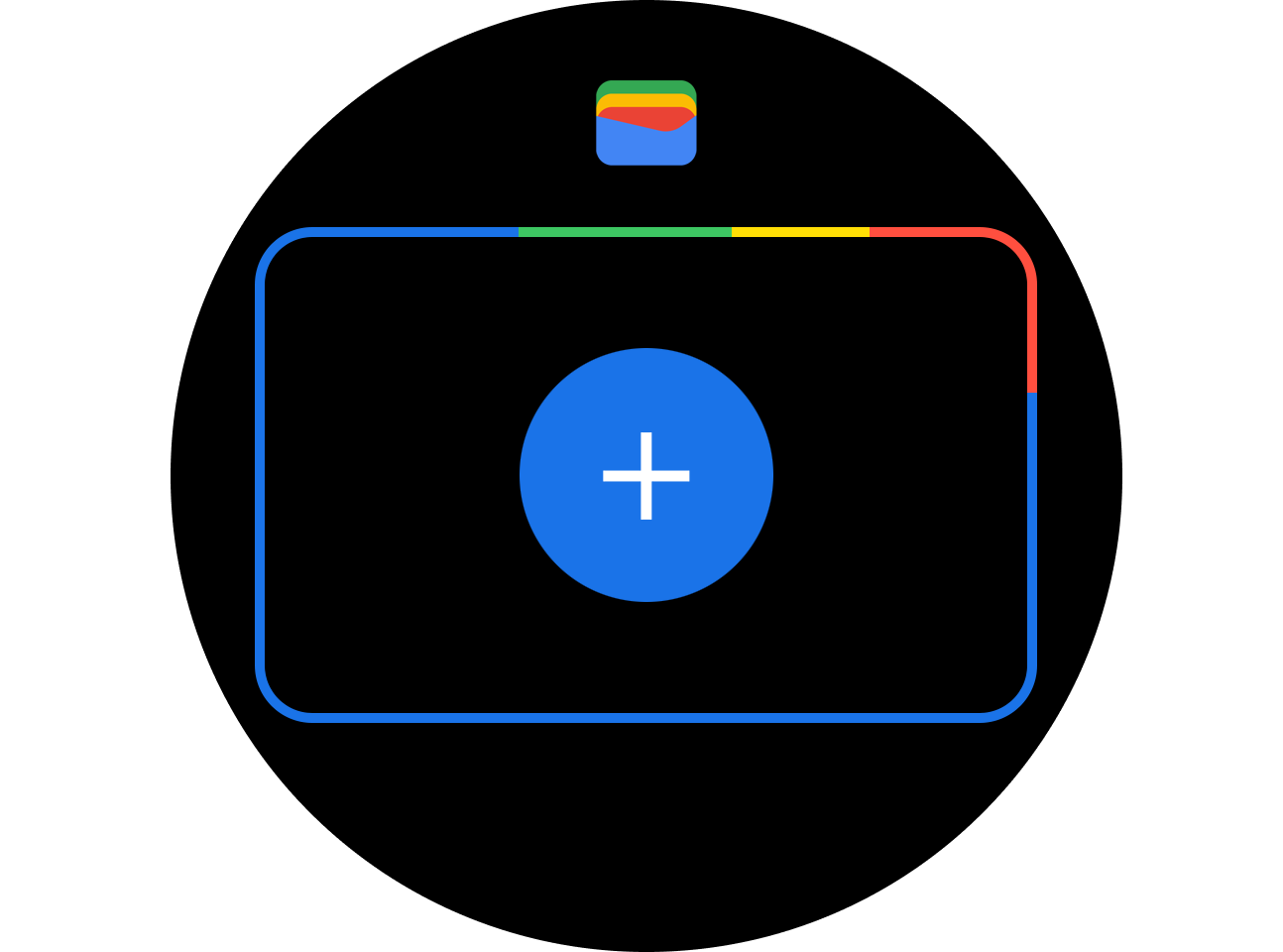
- Open Google Wallet on the watch.
- Tap (+) to Add Card and choose your Debit Mastercard.
- Follow the on-screen prompts to complete setup.
On your smartphone:
- Unlock your phone.
- Hold your phone over the terminal until you see a blue check mark on the screen.
On your wearable:
- On your watch, open the Google Wallet app.
- Hold your watch over the contactless payment terminal until you hear a sound or feel vibration from your watch.
Using your Alterna Debit Card on Google Pay works wherever Interac® Flash is accepted. Just look for the Interac logo or contactless symbol at the checkout. Some stores will also display the Google Pay logo.

Google Pay and Google Wallet are trademarks of Google LLC.

Samsung Pay – Simple. Secure. Widely accepted.
Add your Alterna Savings Debit Card to Samsung Wallet and make fast, easy payments from your Samsung Galaxy smartphone. Use it virtually wherever you shop, with such wide acceptance, you’re on your way to wallet-free shopping.
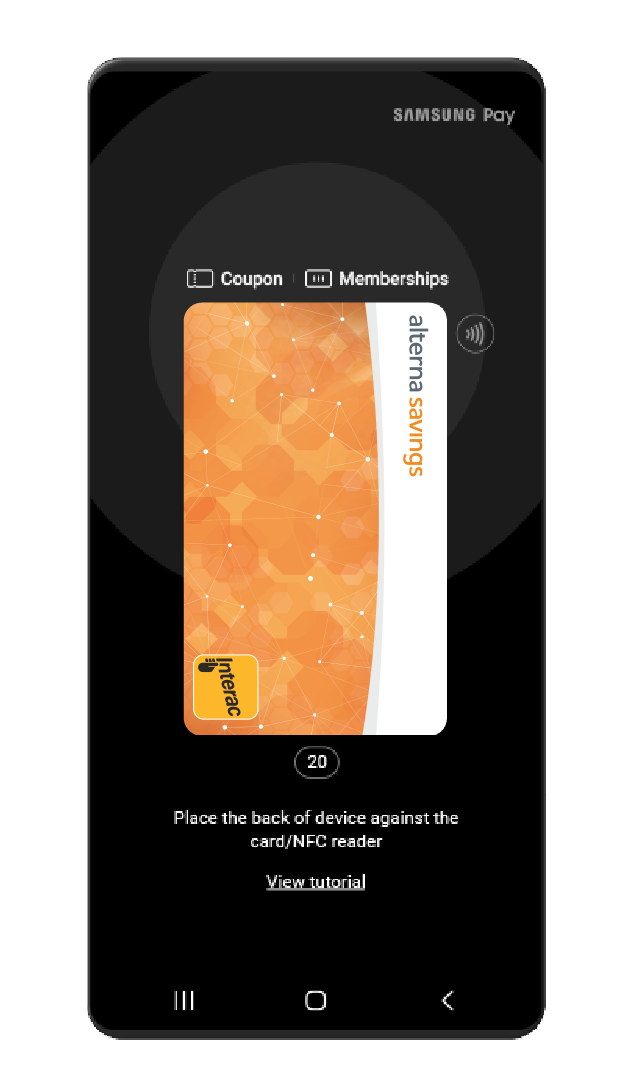
On your mobile device
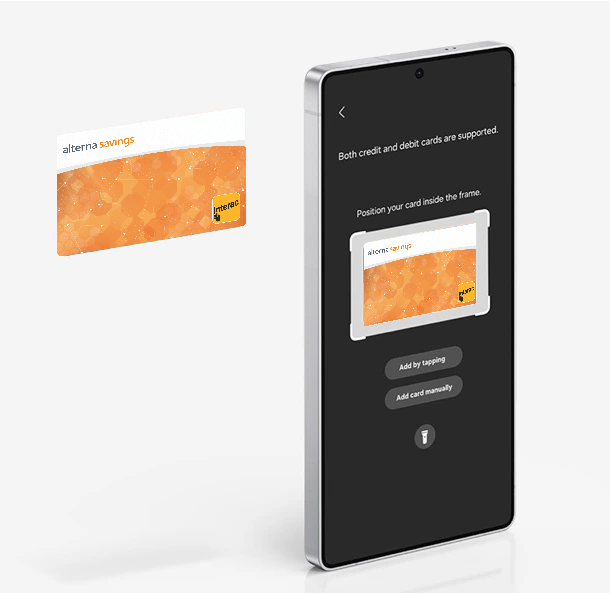
- Open your Samsung Wallet.
- Tap the (+) sign in the upper right corner.
- Follow the on-screen instructions to add your Debit Card.
On your mobile device:
- Open your Samsung Wallet.
- Select your Debit Mastercard.
- Authenticate your card with PIN, fingerprint, or iris scan.
- Hold your phone to the payment terminal. A subtle vibration and beep will confirm your payment and the screen will show a checkmark with a “Payment completed” message. The payment terminal will also let you know when the payment is approved.
Using your Alterna Debit Card on Samsung Pay works wherever Interac® Flash is accepted. Just look for the Interac logo or contactless symbol at the checkout. Some stores will also display the Samsung Pay logo.

Shop with confidence and security

A Secure Way to Pay
Your card details aren’t shared or stored on your device, keeping your data private.

Convenient
Your mobile wallet can be used wherever contactless transactions are accepted. Just look for the Interac Flash logo or contactless symbol.

Pay faster
Tap your phone or wearable device to use your mobile wallet, and you’re good to go.
Need help with mobile wallet. Contact Us.
Frequently Asked Questions
You've got questions.
We've got answers.
Frequently Asked Questions
Mobile wallet works with most modern smartphones and smartwatches:
Apple devices (Apple Pay):
- iPhone 6 and newer models
- Apple Watch (paired with compatible iPhone)
- Must support Face ID or Touch ID
Android devices (Google Pay):
- Most Android devices running Android 9.0 (Pie) or higher
- Must support NFC (Near Field Communication) and Host Card Emulation (HCE)
- Includes devices from Samsung, Huawei, and other manufacturers
- Compatible smartwatches and wearables
Samsung devices (Samsung Pay):
- Samsung Galaxy S6 and newer models
- Samsung Galaxy Note A5 and newer models
Note: Samsung wearable devices are not yet supported for Samsung Pay, but other wearables work with Google Pay and Apple Pay.
Important requirements:
- Your device's operating system must be kept up to date
- Devices that have been jailbroken or otherwise tampered with are not eligible
- To check if your Android device supports NFC, open your Settings app and search for "NFC"
Mobile wallet transactions are secured in a number of different ways. Each mobile wallet transaction requires your authorization through Touch ID, Face ID, or a passcode. Your card number is not shared with the merchant or saved on your device—instead, a secure token is used to complete the purchase.
Mobile wallet uses NFC (Near Field Communication), which is a contactless proximity technology. NFC uses the same technical standards as plastic cards (such as Interac® Flash), which allows you to tap your card to complete transactions.
When you register a card with a mobile wallet, the card is assigned a device account number. The device account number is different from your physical card number and is unique to your device. Your device account number is used to make purchases with a mobile wallet.
NFC is known for short-range, secure transmission, with a maximum distance of less than 5-10 cm. In practice, phones need to be held very near to device readers for a few seconds to complete a transaction.
Neither Apple nor Google collect and stores details on Mobile Wallet financial transactions. To learn how Apple/Google protects your personal information, transaction data, and payment information when you use Mobile Wallet, visit their website
Apple https://support.apple.com/en-ca/HT203027
Google https://support.google.com/pay/answer/7643925?hl=en
No. Mobile Wallet is included in your Alterna account. Each Mobile Wallet payment will count as an additional debit transaction if you pay transaction fees for your account. Please contact us anytime to discuss the right account package for you.
If you believe your device or mobile wallet card information has been lost, stolen, or compromised in any way, call us immediately at 1.877.560.0100. We will deactivate your Alterna Debit Card within mobile wallet.
You also have several self-service options:
For iPhone:
-
Use the Find My iPhone app to temporarily suspend or permanently remove the ability to make payments from your device, even if your device is offline
-
Go to icloud.com/settings, choose the applicable device and delete your card
If you suspend your card using Find My iPhone, you can reactivate it by unlocking your device and entering your Apple ID passcode when prompted.
For Android:
-
Log in to Find My Device and select Erase Device to permanently remove all data, including any payment cards enabled in Google Pay or Samsung Pay
Alterna Digital Banking option:
Lock your debit card in Alterna's digital banking channels. There is a digital guide available here: alterna.ca/en/personal/resource-centre/digital-banking-guides/debit-card-lock.
Please note: if you lock your debit card, both your plastic card and your card in your mobile wallet will be locked.
If you find your device later:
-
Suspended cards can be resumed, but deleted cards must be added again
-
If you locked your debit card in online banking or the mobile app, you'll need to unlock it in digital banking or Contact Us.
Yes, you can use mobile wallet with most smartwatches, but compatibility varies by platform:
Apple Watch:
You can add a card to your Apple Watch through the Apple Watch app on your iPhone.
Google/Wear OS devices:
You can add a card to Google Wallet on your Google watch as well as other Wear OS devices paired with a phone, such as Huawei Watch 2, LG Watch Sport, and LG Watch Urbane 2
Samsung Watch:
Samsung wearable devices are not yet supported for Samsung Pay.
Mobile Wallet transactions use technology within the phone to communicate with the POS terminal and complete the purchase. Depending on the thickness and material of the phone's case, there could be interference, resulting in inconsistent usage of Mobile Wallet.
By repositioning the phone on the terminal and waiting up to a few seconds for the devices to communicate with one another, you should be able to successfully complete a purchase. For some thicker phone cases, you may need to remove the phone's case to complete a purchase.
No. Your iPhone or Android device (powered and unlocked) has everything you need to complete a purchase at a retailer, even without network access. As with card purchases, you may not complete a purchase if the POS terminal is off-line or unavailable.
You will need network access to receive transaction notifications from Apple or Google.
To view your most recent Mobile Wallet transactions, open the Wallet app and select your Alterna Debit Card. To see all transactions completed using your Alterna Debit Card, view them using our digital channels or in your monthly Alterna statements.
Yes, you will receive notifications for both declined and completed transactions.
Apple Pay
To remove a card on an iPhone:
- Open your Wallet App and select the card you would like to remove.
- Touch the information (i) symbol in the bottom right corner (under recent transactions)
- Select Remove Card
To remove a card on an Apple Watch:
- Open the Apple Watch App and select My Watch
- Tap on Passbook & Mobile Wallet
- Select the card you would like to remove and tap Remove Card
Google Pay
To remove a card on your smartphone:
- Open the Google Wallet app.
- At the bottom, tap Payment, then select card you want to remove.
- To delete the card, in the top right tap “More”, then tap Remove payment method.
To remove a card on your wearable:
- On your watch, open the Google Wallet app.
- Scroll to the card you want to remove and then tap it.
- From the bottom, swipe up on “More”
- Then tap “Remove”
Samsung Pay
To remove a card on a Samsung device:
- Open the Samsung Pay app. Touch Wallet, and then touch CREDIT/DEBIT.
- Select the card you want to remove, and then touch “…” (the three dots at the top of the screen) for More Options.
- Touch Delete Card and then choose a reason for removing the card.
- Touch DELETE and then authenticate using your PIN, fingerprint or iris scan.
No. Removing your Alterna Debit Card from Mobile Wallet will not affect your plastic card.
If you get a new debit card, remove the previous card from Mobile Wallet and add the new card.
If the photo option doesn't work, try entering your card details manually. If you’re still having trouble, call our Contact Centre.
Your financial well-being comes first
Welcome to a better way to bank. Our knowledgeable team puts your financial well-being first with good, caring and transparent advice while offering all the products and services you need.
Stay in touch. Be the first to know about news, promotions and announcements. Sign up now!